Opening The Window
You can open the Service Debugger Window using the main menu item Window > Analysis > Service Debugger.
Using The Window
You can switch between seeing all currently active services and all currently loaded clients by pressing the Services / Clients toggle in the the top toolbar.
Services

The Services view lists the status of all currently active services that have been registered via [Service] attributes, Service Tags and Services Components.
The Service column lists the concrete type of the service object.
If the service has been registered using defining types other than just its concrete type, then those is listed inside parentheses after the concrete type.
The Availability column specifies which clients have access to the service. All global services registered using the [Service] attribute are available to clients Everywhere, while local services registered using Service Tags and Services Components can have more limited availability.
You can click the name of a service in the list, to highlight the service in the Scene or Project hierarchy.
You can also right-click a listed service to open a context menu with various additional options.
Clients

The Clients view lists all currently loaded components that are able to receive services.
Debugging Builds
You can attach the Service Debugger to built applications to get real-time information about services and clients from them.
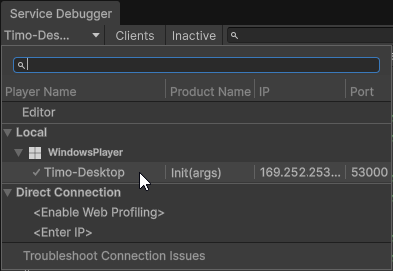
To do this, create a Development Build, launch it, and then in the Service Debugger window select the application from the target menu in the top bar.
Autoconnecting
To attach the Service Debugger automatically to a created build, enable Autoconnect Profiler in Build Profiles and use Build And Run to create the build. This should cause the Service Debugger window to automatically connect to the created build.
This can be used to attach the Service Debugger to Web builds.

